
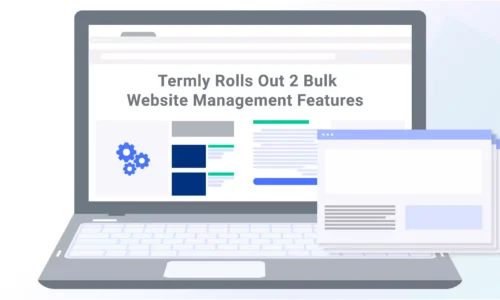
Termly is excited to announce the rollout of two new features to the Bulk Website Management section of your Termly Dashboard!
Whether you’re updating 10, 100, or 1,000 websites at a time, these new features transform how you manage large website portfolios and help you keep everything aligned.
Keep reading to learn more about how to use our updated Bulk Website Management features!
What Are Termly’s New Bulk Website Management Features?
Termly’s two new Bulk Website Management features enable users who manage multiple websites to more quickly and easily tag, group, and update policy and consent management changes across all applicable websites.
Clients can now create labels or templates to segment websites by region or other preferred configurations.
These changes allow Termly users to:
- Add custom tags to group and filter multiple websites based on consent and policy settings,
- Select and copy over compliance settings and policies from a preferred ‘source website’,
- Use the ‘copy settings’ to duplicate the compliance settings, generated policies, consent banner configurations, and multi-language settings,
- Make updates or changes across all tagged websites,
- Filter all your websites based on tags using ‘and’ logic,
- Access bulk deletion settings.
These Bulk Website Management features are accessible by clicking on the ‘Edit’ icon, where you’ll see existing tags and have the option to easily add new, unique, custom ones.
Termly Agency Partners and those managing a large number of sites can now update policy changes and regional consent management features directly from the Termly dashboard.
How Can I Use Termly’s Bulk Website Management Features?
Termly clients with more than one website can use the new Bulk Website Management features by accessing the tagging system or copy settings that appear in your Termly Dashboard.
To add tags:
- Log in to your Termly account and navigate to the ‘Websites’ tab , then click on the ‘Edit’ icon.
- Here you will see a pop-out window that displays existing tags and gives you the option to add your own.
- Enter in the name of your new tag and choose the ‘source website’ or template with the compliance and policy settings you want to duplicate across other sites.
- To save a new tag, click on the ‘ Check’ icon. It can then be applied across multiple websites by manually selecting them from your list of sites or by clicking ‘Select All’.
- To remove tags, simply click on the ‘X’ icon.
You can also add tags by selecting all applicable websites, which leads to another window with an ‘Edit Tags’ option. Clicking this button opens a pop-up where you can add, edit, delete and save tags in the same way.
Learn more details about how to use Termly’s Bulk Website Management features by checking out this support article.
How Termly Updates Helps Simplify Compliance
At Termly, our team of product developers and privacy experts are continuously looking for ways to improve our compliance products and privacy solutions.
We update our legally backed tools to include features like the new bulk website management options to ensure our users have a seamless and simple experience when adding data privacy, legal policy, or consent management features to the sites they help manage.
With Termly in your toolbox, you get privacy compliance made easy.

Written by Natasha Piirainen
Natasha Piirainen is a privacy writer with a Bachelor’s Degree in English and Philosophy from Wheaton College and over 10 years of professional experience in research-driven content development.
Read all posts by Natasha Piirainen