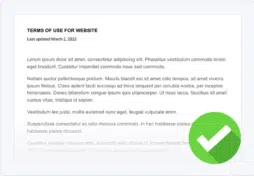


Presenting website visitors with a checkbox requesting they actively select it to show they’ve read and agree to your terms and conditions helps ensure your terms are legally enforceable.
Terms and conditions, also known as terms of service or terms of use, are a legal agreement between you and your users outlining the rules of use for your website, app, or business.
Learn why having proof that a user agreed to terms and conditions by presenting them with a checkbox is useful and how to create one on your website.
- What Is an “Agree to Terms and Conditions” Checkbox?
- What Are Good Examples of “Agree to Terms and Conditions” Checkboxes?
- How Can I Create an “Agree to Terms and Conditions” Checkbox?
- How Do I Add a Terms and Conditions to My Site?
- Frequently Asked Questions About "Agree to Terms and Conditions" Checkboxes
What Is an “Agree to Terms and Conditions” Checkbox?
An “agree to terms and conditions” checkbox is a method of protecting your business by requiring that users acknowledge the rules they must abide by when using your services.
It is often presented as a pop-up when a user first enters a website or begins using a service, during checkout, at login or account creation pages, alongside website forms, or near newsletter sign ups.
Examples of activities that may require such an agreement include:
- Downloading applications
- Installing software
- Purchasing an airline ticket
- Shopping online
- Conducting financial transactions
- Streaming music on a platform
- Registering a social media account
On a website, mobile app, or desktop app, an “agree to terms and conditions” checkbox is simply an empty box that a user must tick in order to acknowledge their consent to the platform’s terms and proceed with their use of the app or website.
This is known as a “clickwrap” agreement.
An alternative to a clickwrap agreement is the “browsewrap” agreement, which assumes that if you browse through any area of a website, you’re tacitly agreeing to the terms and conditions for use.
But because this method doesn’t involve using a checkbox, I’m not going to focus on this method in this guide.
What Are Good Examples of “Agree to Terms and Conditions” Checkboxes?
Next let’s look at strong examples of ‘Agree to Terms and Conditions’ checkboxes:
- Agree to website terms and conditions checkbox sample
- Agree to app terms and conditions checkbox sample
- Agree to SaaS terms and conditions checkbox sample
Use these for inspiration when making them for your website or app.
Website Terms and Conditions Checkbox Example
A good example of a platform requesting users select a checkbox to agree to their website terms and conditions agreement can be found on Steam’s website.
They use checkbox on their sign-up page when a user creates a new account, as shown in the screenshot below.
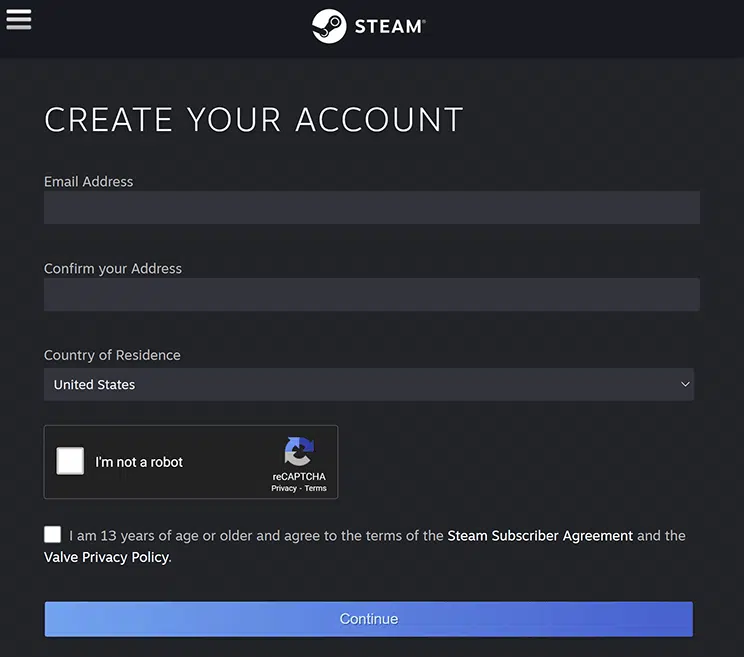
Terms and conditions are an important part of protecting a website. Different websites may employ a variety of methods to capture user agreement to terms and conditions.
Adding it to your account creation or login page prompts new users to fully read the policy before actively joining your platform.
App Terms and Conditions Checkbox Examples
Next, let’s look at a few examples of how you might format a terms and conditions checkbox for a mobile or desktop app.
Apps often use clickwrap agreements and display a checkbox where a user must tick, check, or toggle a box in front of text that usually includes a carefully worded statement, for example:
“By checking this box, you are agreeing to our terms of service.”
“I agree to the terms and conditions as set out by the user agreement.”
“By clicking here, I state that I have read and understood the terms and conditions.”
However, some apps, like the DoorDash sample shown in the screenshot below, choose to forgo a checkbox and instead state that clicking a sign-up button constitutes agreement to terms and conditions.
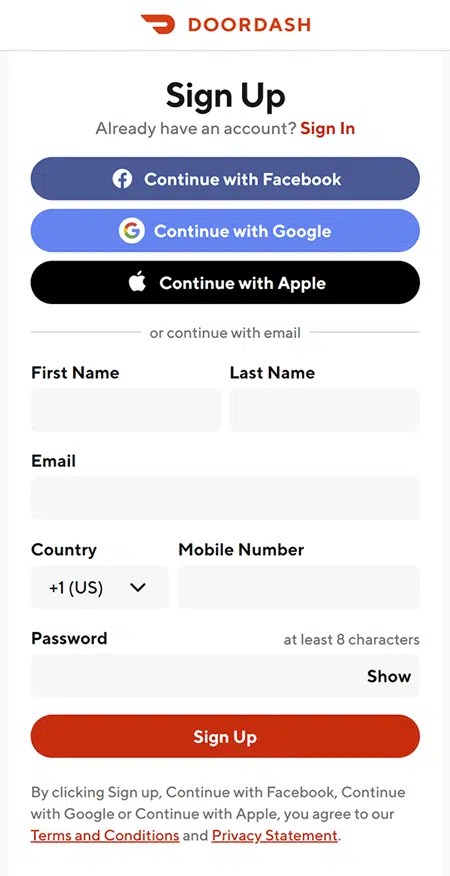
While this is considered a valid method, using clickwrap may provide better protection for a business because the user must take proactive measures to express agreement to your terms.
SaaS Terms and Conditions Checkbox Example
For SaaS companies, using a double-step consent method can be beneficial; this is where a user both ticks a checkbox and clicks on an action button.
See the example from Dropbox, where users have to click to agree to terms and conditions and then click the button to create an account:
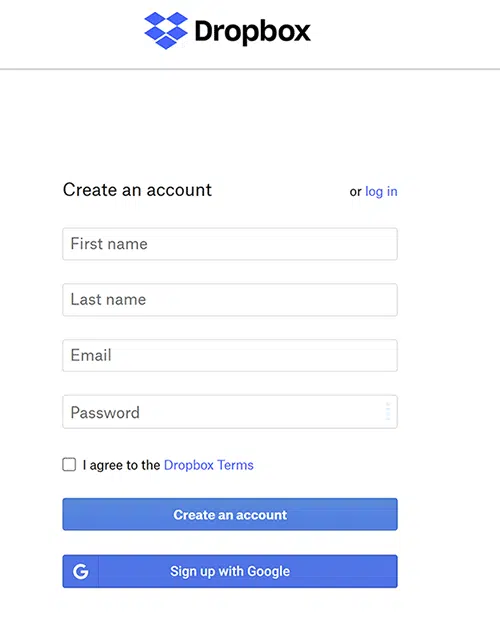
This type of consent holds up favorably if legal disputes arise. It’s more difficult for a user to suggest they were unaware of policies when two-step consent is elicited.
Enforceability of terms and conditions is especially crucial for software as a service (SaaS) companies because it sets out the rules and regulations as to how a user can use the application without abusing it.
For an example of another highly enforceable method, consider how Apple obtains consent when releasing operating systems.
They have a browsewrap agreement on their site and require the consent of a user twice more with a pop-up window and an action button.
Users also receive the terms and conditions directly via email, another way to ensure they’ve had ample opportunity to recieve, read, and agree to them.
How Can I Create an “Agree to Terms and Conditions” Checkbox?
Next I’ll explain how you can make an ‘Agree to Terms and Conditions’ checkbox by following these easy steps:
- Use HTML or JavaScript to make the actual checkbox,
- Use clear, mindful language,
- Post the checkbox in important locations,
- Consider leaving the checkbox unticked,
- Keep consent for other policies separate.
Use HTML or JavaScript
To actually make the checkbox on your website, you can use basic HTML or JavaScript.
HTML is more basic and will provide a checkbox, but might not enable you to track analytics so you can see how many people actually agreed to the document.
JavaScript is more advanced and allows you to have more customer messaging, track unaccepted attempts, and more.
Use Clear, Mindful Language
When making an “Agree to Terms and Conditions” checkbox, use clear and concise language for the script included alongside the checkbox.
Here’s a sample of what you might include:
By selecting this checkbox, I agree to [COMPANY NAME] terms and conditions agreement and acknowledge and have read the policy.
The language you use should be specific and clear so the person knows they are agreeing to a policy, such as:
- I Accept
- Agree
- Agree and Continue
- Agree and Sign Up
Including language stating the user also received and read the terms adds an additional layer of protection, because these are two additional aspects typically required to prove you’ve obtained their legal consent.
Post The Checkbox in Important Locations
The placement of the checkbox or action button can be a material factor in proving a user knew that terms and conditions were being presented and that they were consenting.
Consider including this checkbox with a link to your terms in the following locations:
- On user sign up or account creation pages,
- On payment screens or purchase terminals,
- Before allowing the user to publish something on a public forum,
- Next to online forms or newsletter sign ups,
- Before they can download a tool or service.
Consider Leaving the Checkbox Unticked
It’s up to you to decide if you want to leave the checkbox ticked or unticked, but it’s strongly suggested that you leave it unticked.
This is because it prompts the user to take an action to express agreement to your terms, in this case, clicking the unmarked box.
Similarly, you could also have them click on an ‘I Agree’ or ‘Accept’ button. Doing this increases your chances of being able to prove the user actually agreed to your policy.
Keep Consent for Other Policies Separate
When making the checkbox to denote agreement for your terms and conditions, make sure you keep it separate from asking for their consent to other essential policies, like your privacy policy.
This can be important for legality reasons. For example, if you fall under laws like the GDPR and use consent as your legal basis for processing personal data, you cannot combine or convolute the consent with other agreements.
How Do I Add a Terms and Conditions to My Site?
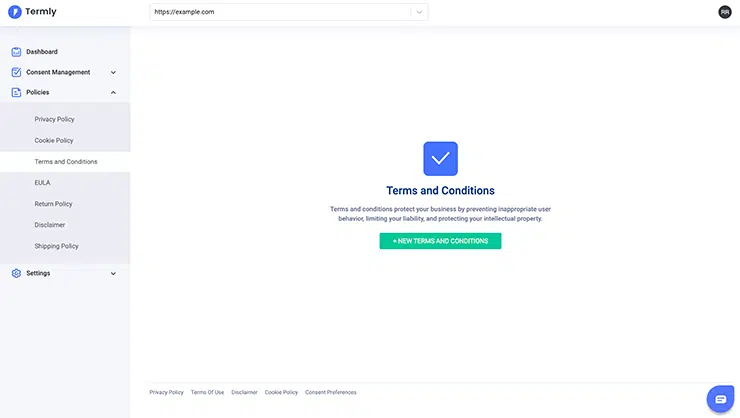
If you need assistance creating or updating your terms and conditions, Termly has a free terms and conditions generator that’s legally backed and incredibly simple to use.
It allows you to choose the agreements for your business’s particular needs and decide exactly how you want them displayed.
You can also use a template or choose to write your own terms and conditions.

Try Termly for Free!
Termly is a an easy-to-use solution for data privacy compliance and consent management.
We know that keeping up with complex data privacy laws can be confusing and time-consuming; that’s why we do the hard work for you!
Try our legal policy generators and cookie consent management solutions for FREE!
Frequently Asked Questions About “Agree to Terms and Conditions” Checkboxes
Learn more about ‘agree to terms and conditions’ checkboxes by reading the FAQs below.
What is the checkbox to agree to terms and conditions?
The checkbox that often accompanies statements on websites or apps saying “I agree to the terms and conditions” acts as a way to prompt users to take an action to show they agree to the terms in the policy.
This helps businesses prove the user was presented with the policy, actually read it, and chose to agree to it.
How do you write an “I agree to the terms and conditions” statement?
When writing an ‘I agree to the terms and conditions” statement to appear next to a checkbox for your users to select, follow these tips:
- Use clear, easy to read language,
- Be transparent about which specific policy the user is agreeing to,
- Provide a live link to the policy they’re agreeing to,
- Do not convolute consent for one policy with consenting to other policies,
- Follow all applicable laws and legal guidelines.
What are some example of terms and conditions agreements?
Scroll up on this page and you’ll find several good examples of terms and conditions agreements and their accompanying checkboxes that are presented to various web users.

Written by Natasha Piirainen
Natasha Piirainen is a privacy writer with a Bachelor’s Degree in English and Philosophy from Wheaton College and over 10 years of professional experience in research-driven content development.
Read all posts by Natasha Piirainen
Reviewed by Masha Komnenic CIPP/E, CIPM, CIPT, FIP
Masha Komnenic is a legal counsel and Termly’s Director of Global Privacy, who received her law degree from Belgrade University. She specializes in implementing, monitoring, and auditing business compliance with privacy regulations (HIPAA, PIPEDA, ePrivacy Directive, GDPR, CCPA, POPIA, LGPD).
Read all posts reviewed by Masha Komnenic CIPP/E, CIPM, CIPT, FIP